Secure your Netscaler with A+ Security Rating
Recently I was reviewing the SSL configuration on a Citrix NetScaler / Citrix ADC Gateway and noticed that SSL Labs was only giving the public Gateway a B rating. At first glance, the certificate itself looked fine. SSL Labs showed the certificate score as 100, so the issue was not the public certificate, expiry date, or chain. The problem was the actual SSL/TLS configuration on the NetScaler.
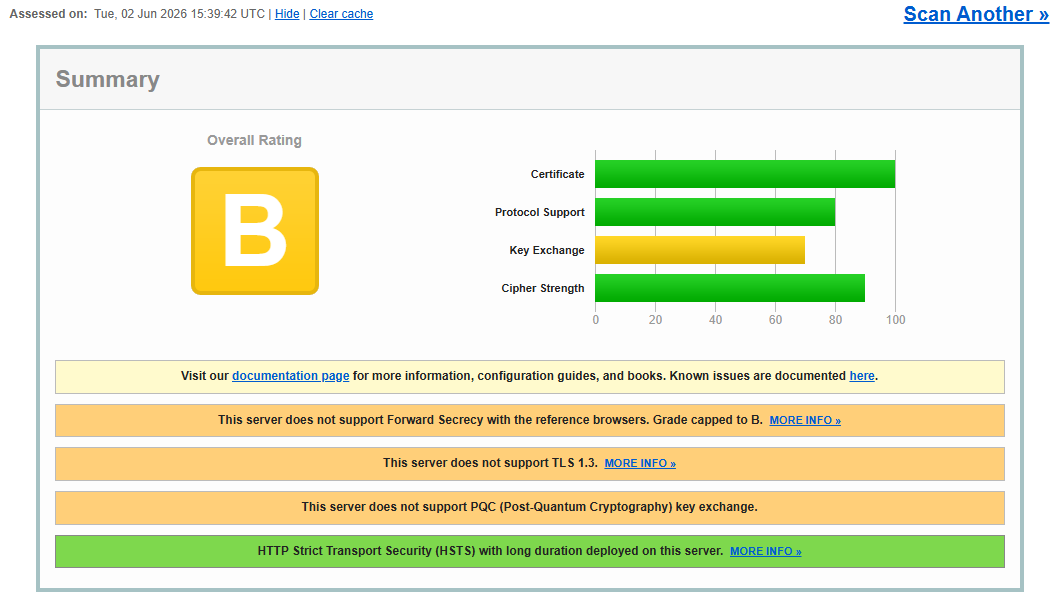
The SSL Labs report highlighted three main warnings:
This server does not support Forward Secrecy with the reference browsers.
This server does not support TLS 1.3.
This server does not support PQC (Post-Quantum Cryptography) key exchange.
The big one was Forward Secrecy, because without it, SSL Labs can cap the grade at B. TLS 1.3 is also now much more important for modern SSL scoring and browser compatibility. NetScaler supports TLS 1.3 on VPX and MPX, although TLS 1.3 requires the enhanced/default SSL profile model.
As of 14.1.66.59 the SECURE cipher doesnt include TLS 1.3 Ciphers which will also lower your score.
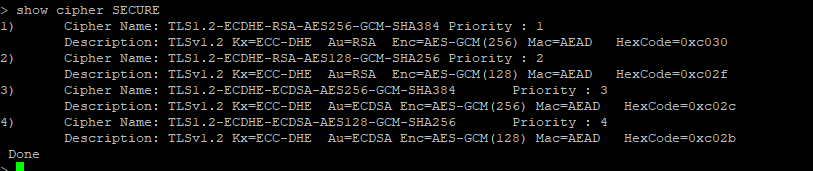
Step 1: Check the existing SSL vServer and profile
Before changing anything, check what the SSL vServer is currently using. you can open a putty session it would be quicker or you can view your SSL Profile inside your Netscaler Gateway Virtual Servers in the GUI..
show ssl vserver <Gateway_vServer_Name>
show ssl profile <Current_SSL_Profile_Name>
show ssl parameter
show cipher SECURE
You might want to take a quick backup of your ns.conf this can be done in the GUI System > Backup and restore.
Step 2: Enable the default/enhanced SSL profile model
When trying to bind ciphers or ECC curves to a custom SSL profile, you may hit this error:
Operation not permitted. To do this Enable default ssl profile by setting ‘set ssl parameter -defaultProfile ENABLED’
To fix this use this command:
set ssl parameter -defaultProfile ENABLEDThis is an important change. NetScaler documentation states that enabling the default profile automatically binds the default front-end and back-end profiles to SSL entities, and the operation enables both front-end and back-end default profiles. It can also override an older legacy profile binding, so treat this as a proper production change-window item.
Step 3: Create or update a custom front-end SSL profile
In my case, I used a custom front-end SSL profile rather than relying only on the built-in SECURE cipher group or built-in secure profile.
It should look something like this but you can also customise it.
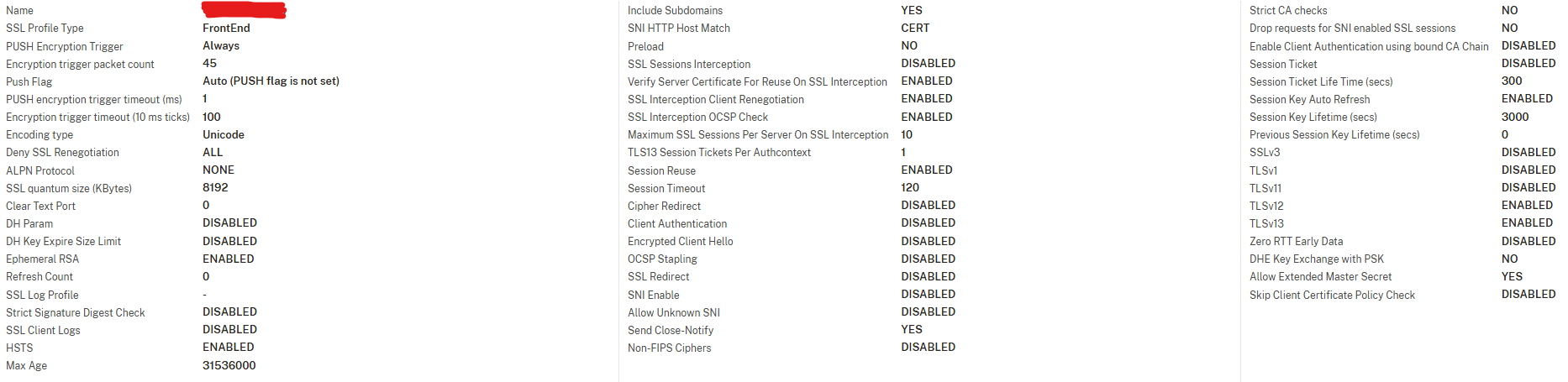
This is the command to create the SSL Profile:
set ssl profile "MY-SSL Profile" -ssl3 DISABLED -tls1 DISABLED -tls11 DISABLED -tls12 ENABLED -tls13 ENABLED -denySSLReneg ALL -HSTS ENABLED -maxage 31536000 -IncludeSubdomains YES -allowExtendedMasterSecret YESThe key points here are:
- SSLv3 disabled
- TLS 1.0 disabled
- TLS 1.1 disabled
- TLS 1.2 enabled for compatibility
- TLS 1.3 enabled for modern clients
- HSTS enabled
- Extended Master Secret enabled
I would not disable TLS 1.2 on a Citrix Gateway unless you have fully tested every client type. Keeping TLS 1.2 enabled is still sensible for Citrix Workspace App compatibility, while TLS 1.3 helps modern browsers and newer clients.
HSTS warning
Only use IncludeSubdomains – YES if every important subdomain under the parent domain is HTTPS-ready.
Step 4: Create a custom modern cipher group
The built-in SECURE group is useful, but I wanted a cleaner and more controlled cipher set that meets the standard for A+
For a normal RSA certificate, this is the modern compatible set I would start with:
add ssl cipher MY_MODERN_CIPHERS

bind ssl cipher MY_MODERN_CIPHERS -cipherName TLS1.3-AES256-GCM-SHA384
bind ssl cipher MY_MODERN_CIPHERS -cipherName TLS1.3-AES128-GCM-SHA256
bind ssl cipher MY_MODERN_CIPHERS -cipherName TLS1.3-CHACHA20-POLY1305-SHA256

bind ssl cipher MY_MODERN_CIPHERS -cipherName TLS1.2-ECDHE-RSA-AES256-GCM-SHA384
bind ssl cipher MY_MODERN_CIPHERS -cipherName TLS1.2-ECDHE-RSA-AES128-GCM-SHA256
Bind the new cipher group to the SSL Profile.
bind ssl profile "MY-SSL Profile" -cipherName MY_MODERN_CIPHERSNetScaler supports user defined cipher groups, and the documentation states that you can create a custom group and bind individual ciphers to it. Built-in/predefined cipher groups cannot be modified directly, which is another reason a custom group is useful. The only draw back is your custom cipher group needs to be maintenanced where built-in ciphers are updated when the firmware as been updated.
Step 5: Bind the custom cipher group to the SSL profile
You can change the binding of the new SSL Profile in the Netscaler Gateway or to any other Virtual Server now. Ensure you use the SSL Profile and not the standard SSL Parameters. If SECURE or DEFAULT cipher group is already bound you will need to unbind it first.
unbind ssl profile "MY-SSL Profile" -cipherName SECUREFrom a Putty session use the following command.
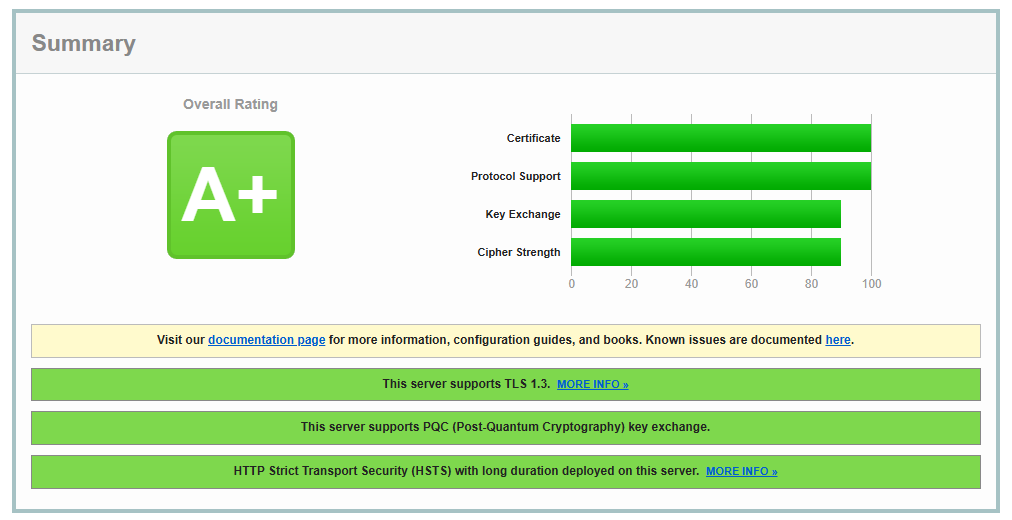
set ssl vserver <Gateway_vServer_Name> -sslProfile "MY-SSL Profile"You can now test your Netscaler Gateway on SSL LABS > https://www.ssllabs.com/ and you should get and A+
PRO Tip:
Before you save the changes go to System > Diagnostics and click Save vs Running.
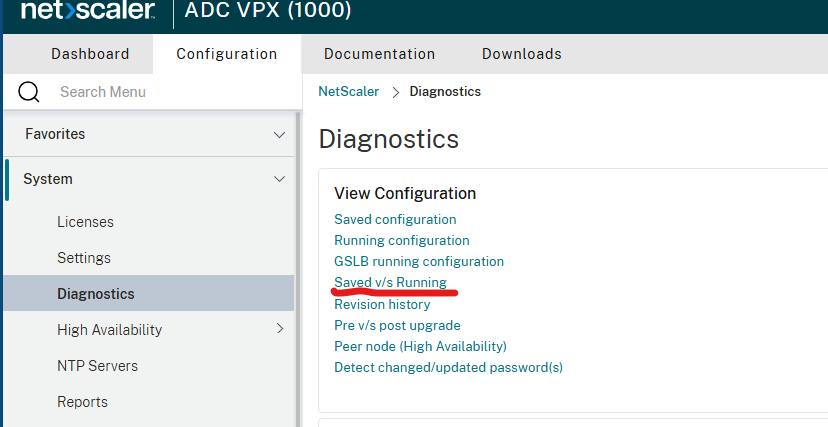
Export a diff report and the corrective commands. This can be used later for job automation in Citrix Netscaler Console/Citrix ADM or to run in other putty session. You also have all the rollback commands that you can put in your company work ticket system.
Verification:
Use the following command to ensure you new SLL Profile has the correct binding and is bound to the Gateway VServer or Vserver
show ssl parameter
show ssl vserver <Gateway_vServer_Name>
show ssl profile "MY-SSL Profile"
show ssl cipher MY_MODERN_CIPHERS
Your Support:
Please share if you find this article useful and check out our YouTube channel.
References
NetScaler SSL Profiles / Enabling the Default SSL Profile
https://docs.netscaler.com/en-us/citrix-adc/current-release/ssl/ssl-profiles/ssl-enabling-the-default-profile.html
NetScaler Secure Front-End SSL Profile
https://docs.netscaler.com/en-us/citrix-adc/current-release/ssl/ssl-profiles/secure-front-end-profile.html
NetScaler TLS 1.3 Protocol Support
https://docs.netscaler.com/en-us/citrix-adc/current-release/ssl/tls13-protocol-support.html
Enable TLS 1.3 on NetScaler Gateway
https://docs.netscaler.com/en-us/netscaler-gateway/current-release/ssl-support-on-netscaler-gateway/enable-tls-1-3-on-netscaler-gateway.html
NetScaler Cipher Suites / Available Ciphers
https://docs.netscaler.com/en-us/citrix-adc/current-release/ssl/ciphers-available-on-the-citrix-adc-appliances.html
Configure User-Defined Cipher Groups on NetScaler
https://docs.netscaler.com/en-us/citrix-adc/current-release/ssl/ciphers-available-on-the-citrix-ADC-appliances/configure-user-defined-cipher-groups-on-the-adc-appliance.html
NetScaler ECDHE Ciphers and ECC Curves
https://docs.netscaler.com/en-us/citrix-adc/current-release/ssl/ciphers-available-on-the-citrix-ADC-appliances/ecdhe-ciphers.html
NetScaler ECDSA Cipher Suite Support
https://docs.netscaler.com/en-us/citrix-adc/current-release/ssl/ciphers-available-on-the-citrix-ADC-appliances/ecdsa-cipher-suite-support-on-mpx-appliances.html
NetScaler Hybrid PQC / Post-Quantum Cryptography
https://docs.netscaler.com/en-us/citrix-adc/current-release/ssl/hybrid-pqc.html
SSL Labs SSL Server Rating Guide
https://github.com/ssllabs/research/wiki/SSL-Server-Rating-Guide
Qualys SSL Labs Grading Changes / TLS 1.3 / PQC Notice
https://notifications.qualys.com/product/2025/02/26/key-changes-in-ssl-labs-grading-and-qualys-certview